 Jopiggy Tools
 Online Stopwatch — Accurate to 1/100 Second
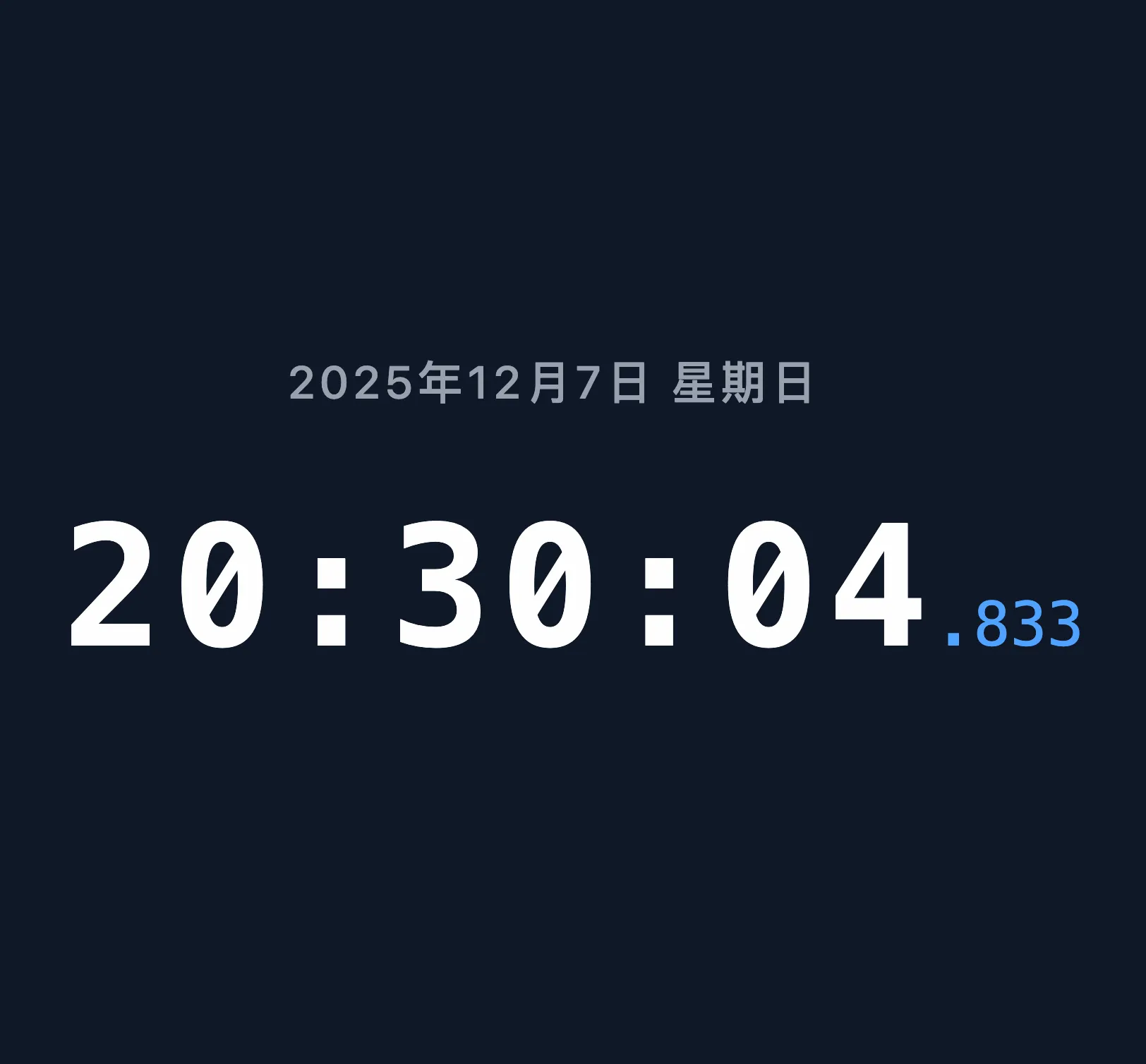
A fully-featured free online stopwatch with millisecond precision, lap timing, and fullscreen mode. No installation required — just open your browser and go.
Features
- Start / Pause / Resume: Press the Start button or hit the
Space/Skey to begin timing - Lap Timing: Press “Lap” or the
Lkey while running to record a split time (Loop mode only) - Reset: Pause then press “Reset” or the
Ckey to clear all lap records - Fullscreen Mode: Press “Fullscreen” or the
Fkey for an immersive display
Four Timer Modes
Switch between 4 modes from the dropdown menu in the top-right corner:
⏱ Simple Mode
The most streamlined timing experience. Start, pause, and reset — plus a “Quick Restart” toggle: when enabled, pressing start while paused automatically resets and begins a new session. Ideal for quick repetitive timing like cooking or simple workouts.
📋 Record Mode
Press Space to start, press Space again to stop and record the time — automatically checks if it’s a top 3 result and shows a rank badge (🎉 #1! / #2! / #3!) with fireworks for podium finishes, or “not in top 3”. Press Space once more to immediately start a new session. Best times persist across resets and mode switches. Perfect for fitness tests, reaction drills, lab measurements, and any scenario requiring consecutive timed attempts with personal best tracking.
🔄 Loop Mode
Traditional lap timing. Press “Lap” or the L key repeatedly while running to record splits, with automatic fastest/slowest lap highlighting and a scrollable lap table with a fixed header. Great for running, swimming, and interval training.
🧩 Cube Mode
StackMat-inspired touch timing: tap the pill button (turns green) → release to start → tap again to stop. Each session auto-saves and shows a rank badge with fireworks for top 3 results. Designed for speedcubing and any scenario needing to eliminate start-up delay.
Keyboard Shortcuts
| Key | Action |
|---|---|
Space or S | Start / Pause |
L | Record Lap (Loop mode only, when running) |
C | Reset to zero (when paused) |
F | Toggle Fullscreen |
← / → | Start / Pause (Loop mode running → same as L) |
Use Cases
- Sports Training: Track laps for running, swimming, or interval training — automatically highlights fastest and slowest laps
- Lab & Research: Precision timing for experiments and measurements
- Cooking: Multi-step recipe timing or quick repeat timers
- Games & Competitions: Round timing for board games and esports
- Speedcubing: Hold-release timing with automatic best-time tracking
Precision
This stopwatch uses the browser’s performance.now() API, offering microsecond-level theoretical precision with a display accuracy of 1/100 second (10 ms). Minimal drift may occur during extended use due to browser power-saving mechanisms.
Frequently Asked Questions (FAQ)
1. Which is more accurate — an online stopwatch or a phone app?
They’re comparable — both use the device’s hardware clock. This online stopwatch uses the performance.now() API, achieving millisecond precision in both desktop and mobile browsers. The advantage of an online stopwatch is that it requires no installation, supports fullscreen mode, keyboard shortcuts, and advanced lap timing features.
2. What’s the difference between a stopwatch and a countdown timer?
A stopwatch counts upward from zero, measuring elapsed time. A countdown timer starts from a preset duration and counts down to zero. Use a stopwatch when you need to know “how long did that take?” and a countdown timer when you need to know “how much time is left?” — like cooking eggs or timing a break.
3. Can I time multiple people at once?
This stopwatch tracks one main timer at a time. In Loop mode, you can record individual lap times for different people, distinguished by lap number. For independent multi-person timing, you may want to open multiple browser tabs or use dedicated multi-timer software.
4. Why would I need lap timing?
Lap timing lets you record intermediate times without stopping the overall timer. For example, during a run you can press “Lap” at each mile to see split times afterward. The timer automatically highlights your fastest and slowest laps, helping you analyze your performance.
5. Why does Cube mode use touch-to-start (hold-release)?
Touch-to-start (touching the pill button → releasing triggers the start) eliminates the delay caused by physically pressing a button. Traditional buttons introduce 0.1–0.3 seconds of latency between deciding to start and when timing actually begins — a significant margin for speedcubing or reaction-based timing. Release-to-start ensures the timer begins the instant your finger leaves the button.
6. Where are the best times saved in Record mode?
Best times are stored in browser memory and persist across resets and mode switches within the same session. However, they are cleared when you close the tab or refresh the page. This is intentional — no cookies, logins, or databases are required, protecting your privacy.
7. When do the L and C keyboard shortcuts not work?
L(record lap) only works in Loop mode while the timer is running — pressing L in other modes has no effect.C(reset) only works when the timer is paused — pressing C while running won’t reset; you must press Space to pause first.
8. How do I exit fullscreen mode?
Press the F key to toggle fullscreen off. You can also click the “Exit Fullscreen” button (⤓) on screen, or press Esc on your keyboard to exit the browser’s native fullscreen mode.
9. Is this stopwatch suitable for lab use?
Yes, for general lab timing. It offers millisecond precision, Record mode for automatic top-3 tracking across consecutive trials, and Loop mode for recording multiple data points. However, it is not a calibrated scientific instrument and should not be used for clinical or industrial measurements requiring formal certification.
10. Why does the stopwatch occasionally skip or stutter?
This is typically caused by browser power-saving mechanisms or page performance fluctuations. When the browser tab is backgrounded or the CPU is under load, performance.now() callbacks may become irregular. If you notice visible stuttering, try closing other tabs or refreshing the page.
11. How long can the stopwatch run?
Indefinitely, in theory. However, over extended periods (several hours), browser power-saving features may introduce minor cumulative drift, and performance.now() precision may degrade slightly. For sessions lasting more than a few hours, consider restarting the timer every hour to maintain accuracy.
12. Which use case fits each mode?
- Simple mode: Quick everyday timing — cooking, simple workouts. Minimal steps, maximum speed.
- Record mode: Consecutive attempts with personal best tracking — fitness tests, reaction drills. Automatically records top 3.
- Loop mode: Activities needing split/segment recording — running laps, swim intervals. Automatically highlights fastest/slowest.
- Cube mode: Precision timing where start-up delay matters — speedcubing, reaction time tests.
What’s the difference between lap timing and split timing?
This is one of the most commonly confused concepts in stopwatches:
- Lap Timing: Records the time of each individual segment while the overall timer keeps running. For example, during a 5K run, pressing Lap at each kilometer gives you “Lap 1: 4:30, Lap 2: 4:45…”
- Split Timing: Records the cumulative time from the start to each checkpoint. Using the same example, it shows “Split 1: 4:30, Split 2: 9:15…”
This stopwatch’s Loop mode uses Lap Timing (individual segment time) because it’s most valuable for sports performance analysis — letting you see the fluctuation in each lap at a glance.
How do keyboard shortcuts differ between modes?
Here’s a detailed comparison of keyboard shortcuts across all four modes:
| Shortcut | Simple Mode | Record Mode | Loop Mode | Cube Mode |
|---|---|---|---|---|
| Space/S | Start/Pause | Start/Stop | Start/Pause | Touch Start |
| L | No action | No action | Record Lap | No action |
| C | Reset (paused) | Reset (paused) | Reset (paused) | Reset (paused) |
| F | Toggle Fullscreen | Toggle Fullscreen | Toggle Fullscreen | Toggle Fullscreen |
| ←/→ | No action | No action | Start/Pause | No action |
Will the stopwatch stay accurate after sleep or hibernation?
No, it will not. When the computer enters Sleep or Hibernation mode, the JavaScript execution thread is suspended and the performance.now() counter stops. Upon wake, the stopwatch displays the value from before sleep, even if several hours have passed. Solutions:
- Prevent the computer from sleeping during long timing sessions
- Disable auto-sleep in system settings
- For timing that must span sleep cycles, use a dedicated physical stopwatch
- Check the time immediately after wake; reset if any doubt about accuracy